General Page
Go to: IBM i Technology Updates > Navigator for i
IBM Navigator for i is the modern web-based interface for IBM i access, management, and monitoring. Navigator for i provides a full range of system management, performance analysis features, and monitoring capabilities for IBM i. Using new modern graphical user interface technology combined with the power of SQL Services, maintaining your IBM i has never been easier!
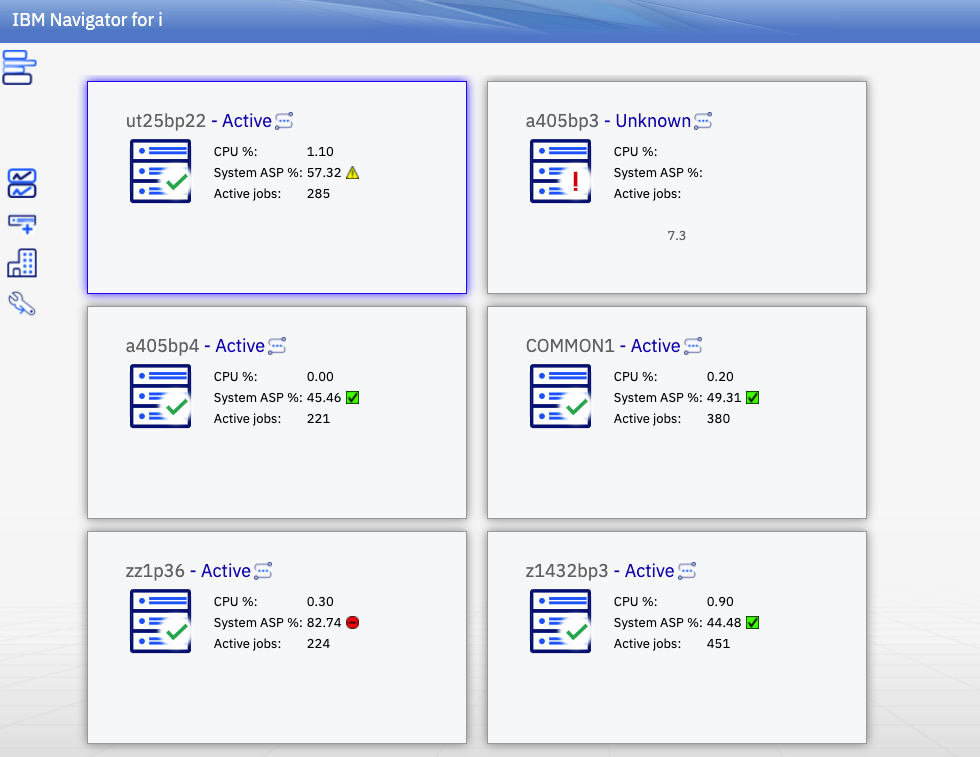
Navigator for i is designed to provide a single pane for you to see and organize all the IBM i nodes in your shop. This multi-system approach has many advantages such as:
- Easy ability to switch between nodes
- End-to-End secure connection
- Monitor multiple systems in a single graphical view
Individual system tasks include some of the following:
- My work
- System and Message Monitors
- Licensing support
- Work management
- Configuration and service
- Network
- Exit programs
- Security
- Users and groups
- EIM Configuration
- File Share Management
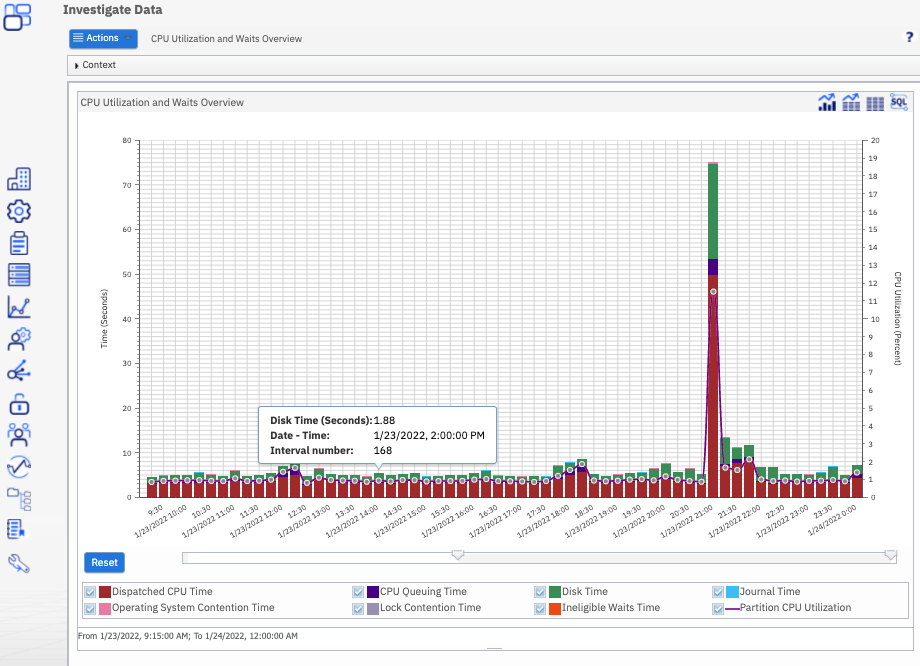
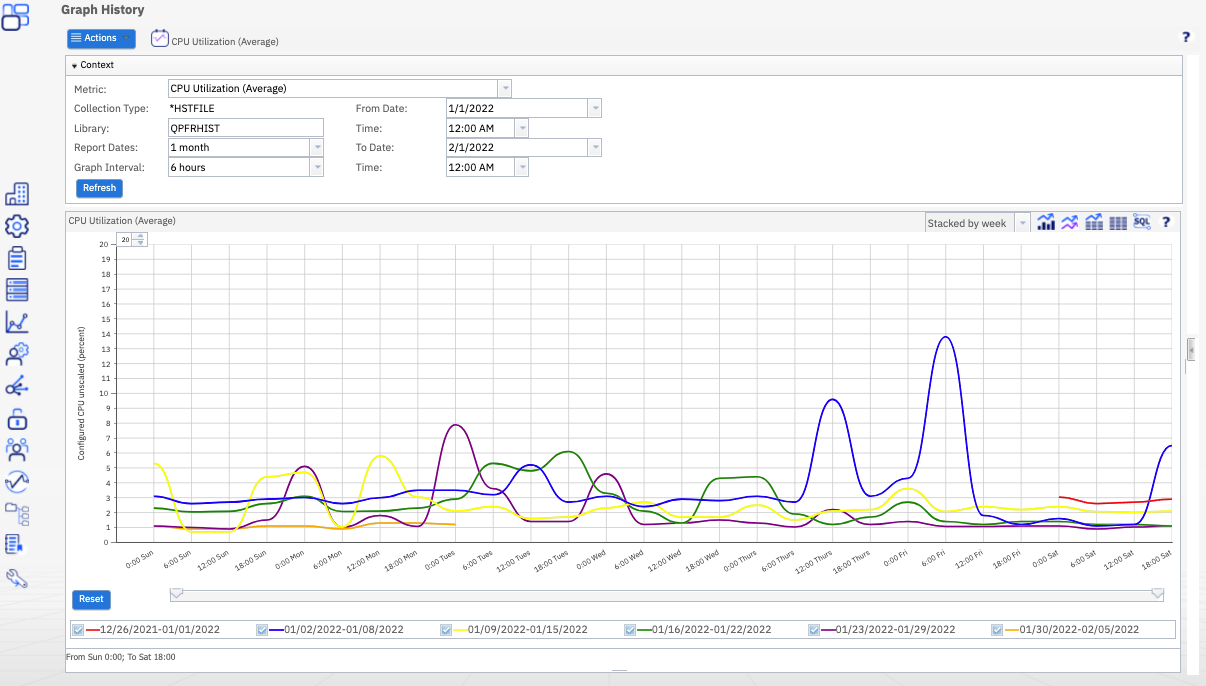
- Performance
- Authority Collection
- Locked IFS Objects
- TCP/IP Servers Configuration
- System Status
Optional products such as Content Manager OnDemand, are readily available and automatically “plugged in” when installed.
To access the web console, open a web browser and point it to your IBM i system (port 2001). See IBM Navigator for i.
Overview
- IBM Navigator for i can manage all the IBM i end-point nodes in your ecosystem.
- Use the latest versions of modern popular browsers (Firefox, Chrome, Safari and others).
- It is included as part of the base operating system - option 3 (5770SS1 0003).
- A list of installed product requirements can be found under Product Install Requirements.
Plug-ins
Resources
Was this topic helpful?
Document Information
More support for:
IBM Power Systems
Software version:
Version Independent
Operating system(s):
IBM i
Document number:
633937
Modified date:
09 May 2024
UID
isg3T1026869